Share a document with another user
Sharing gives another user access to one document. Use it when a colleague needs to see or work on one document that their roles or user permissions do not give them. A shared document is visible to the user even when a user permission blocks it.
Prerequisites
- You have the Share permission on the document. See Permission types.
- Disable Document Sharing is not selected in System Settings.
Share the document
- Open the document.
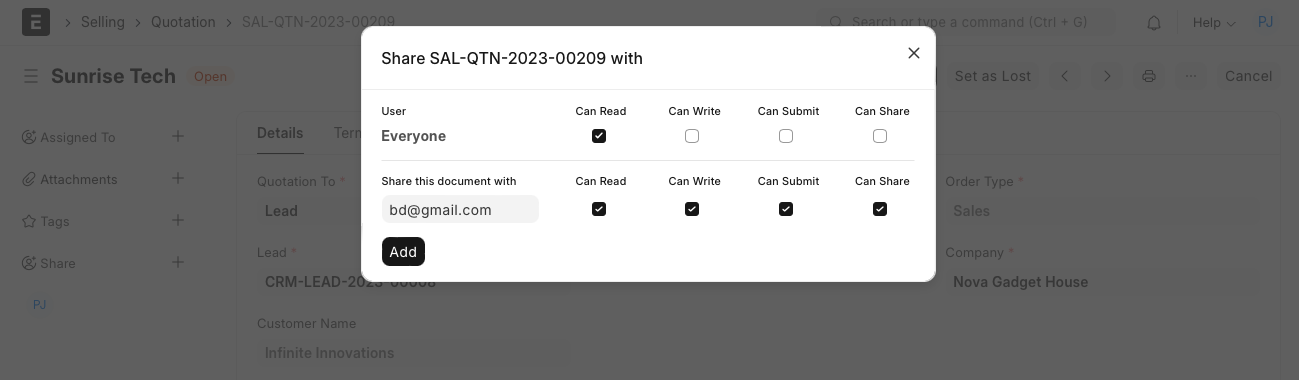
- In the form sidebar, select the add button (+) next to Share.
- In Share this document with, select the user. To share with all users, use the Everyone row.
- Select the rights: Read, Write, Submit, or Share.
- Select Add.
Repeat for each user. The sidebar shows the users the document is shared with.
Remove a share
Open the share dialog again and clear the rights of the user.