Update existing documents with Data Import
Use Data Import with Update Existing Records to correct or fill fields in many existing documents from a spreadsheet. ERPNext finds each document by the ID column and overwrites the fields in the file. It does not create new documents.
Prerequisites
- The Import permission and the Write permission on the document.
- A backup, or an export of the current data to go back to.
Step 1: Create a Data Import
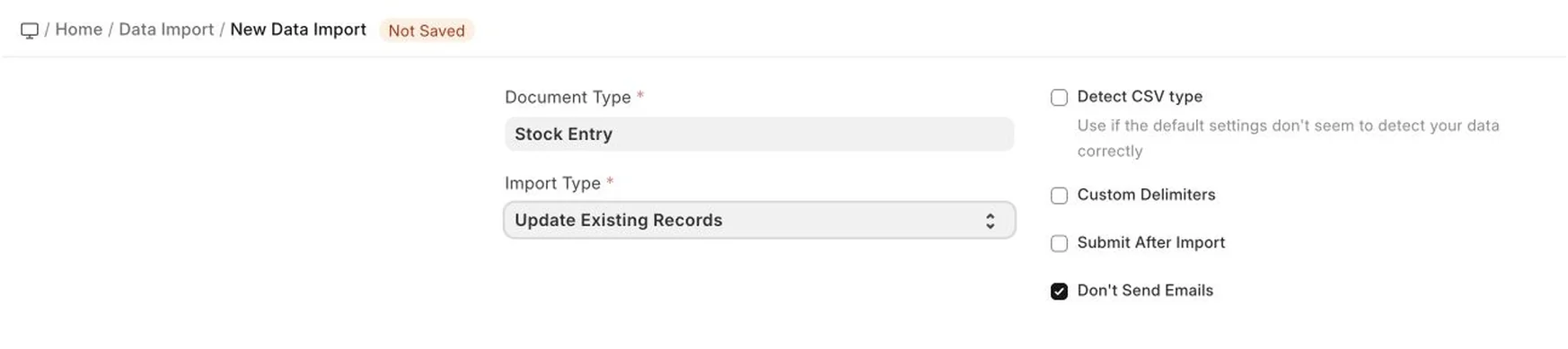
- Open the Data Import list and select Add Data Import.
- In Document Type, select the document, for example Customer.
- In Import Type, select Update Existing Records.
- Save.
Step 2: Export the documents to change
- Select Download Template.
- In Export Type, select Filtered Records, and add filters to get only the documents to change. For example, filter Customers by Territory.
- Select only the fields to change. The ID column is always included.
- Select Export.
Step 3: Edit the file
- Do not change the ID column. ERPNext uses it to find each document.
- Change the values in the other columns.
- Remove the rows that should not change.
- Remove the columns that should not change. An old value in an extra column overwrites any newer value in ERPNext.
- In a table inside the document, a row that you remove from the file is deleted from the document.
Step 4: Import the file
- Attach the file in Import File.
- Check the preview and fix all warnings.
- Keep Don't Send Emails selected unless you want update notifications.
- Select Submit After Import only if the documents must be submitted after the update.
- Select Start Import.
TIP
Import a few rows first and check the result. Then import the rest in batches. Keep the original export and the final file for your records.
Troubleshooting
| Problem | Fix |
|---|---|
| Record not found | The ID column is missing or has a wrong value. Use the exact ID of the document. |
| Link validation failed | A value in a link field does not exist or is misspelled. |
| Mandatory field missing | A required field is empty in the file. Fill it, or remove the column. |
| Permission error | Your roles cannot change this document or field. |
| Field cannot be changed | The document is submitted and the field cannot change after submit. |